


Zones and Customer Visits in Geotab
Every fleet has places that matter: your yard, your customers, your suppliers, the job sites you service every week. Zones in Geotab let you draw a virtual boundary around each of those places, so your tracking data speaks in terms of customers and locations instead of raw street addresses.
Once your zones are in place, MyGeotab can show you which ones your vehicles stop at, how often, and for how long. That is the foundation of the Zone Visits report, which many fleets still know by its original name, the Customer Visits report.
What are zones?
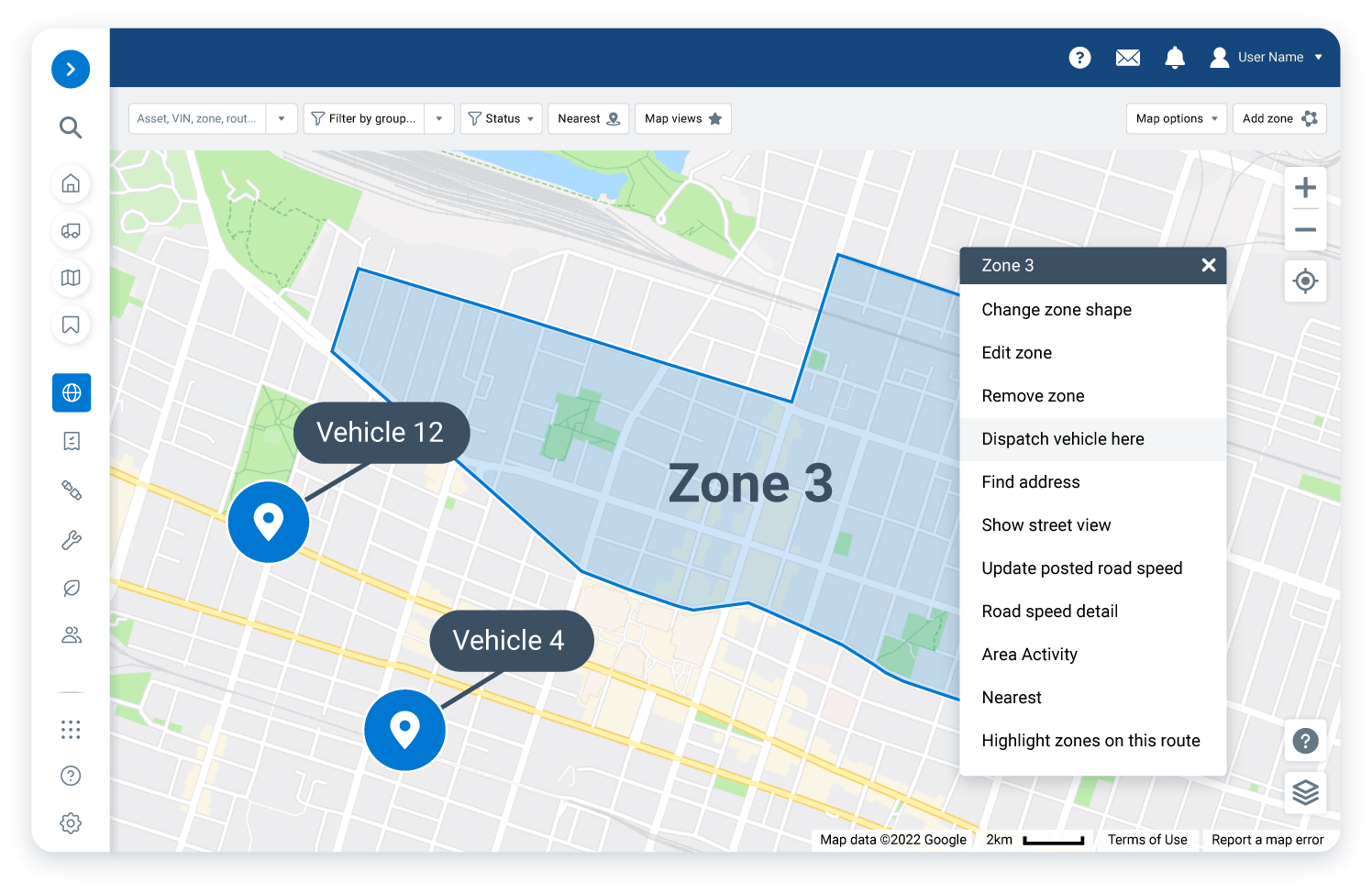
Zones are virtual perimeters around real-world areas of interest. You can create them for offices, customer locations, or even entire states. You are not limited to customer sites either. Zones can mark yards, supplier locations, restricted areas, or anywhere else you want visibility.
You draw a zone by clicking points on the map to outline the area, then name it and choose a few settings:
- Publish to groups: Apply the zone to specific assets and drivers, or to your whole company.
- Zone type: Categorize zones (for example, customers versus yards) so you can filter reports.
- Visible on the map: Show or hide the zone.
- Stops inside the zone: Choose whether stops are indicated within the zone.
- End date: Make a zone temporary, which suits short-term job sites.
Have a long customer list? Import it
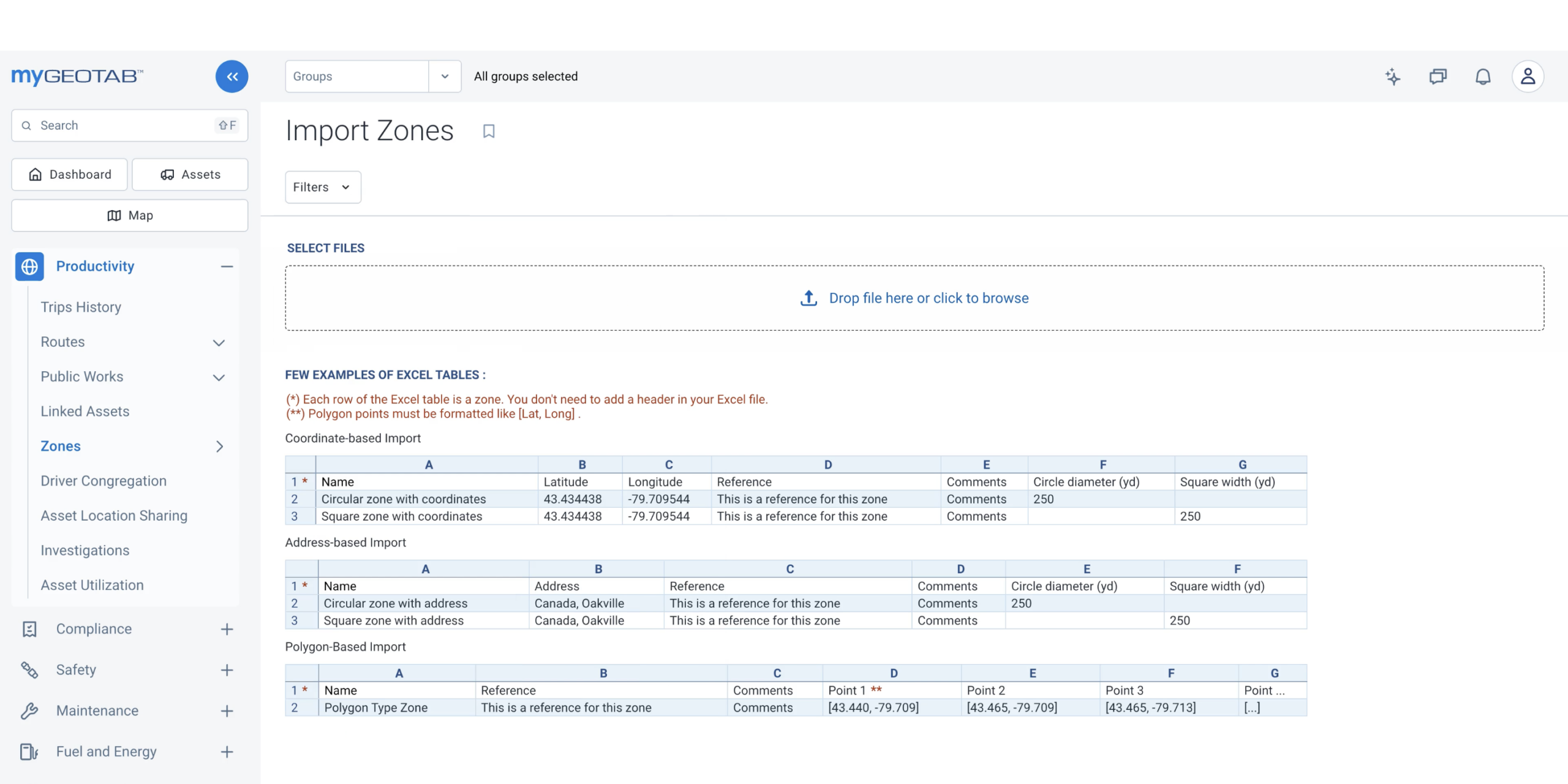
You don’t need to draw every zone by hand. MyGeotab can import zones in bulk from a spreadsheet (CSV). It supports coordinate, address and polygon-based imports. After the upload, you see which zones are valid and which need fixing, and you can export the invalid ones for review.
The Zone Visits (Customer Visits) report
The Zone Visits report shows which zones your vehicles and drivers stopped in, how often they visited, and how long they stayed. For every visit you get:
- Zone name, so you see the customer, not just an address
- Time of arrival
- Visit duration
- Time of departure
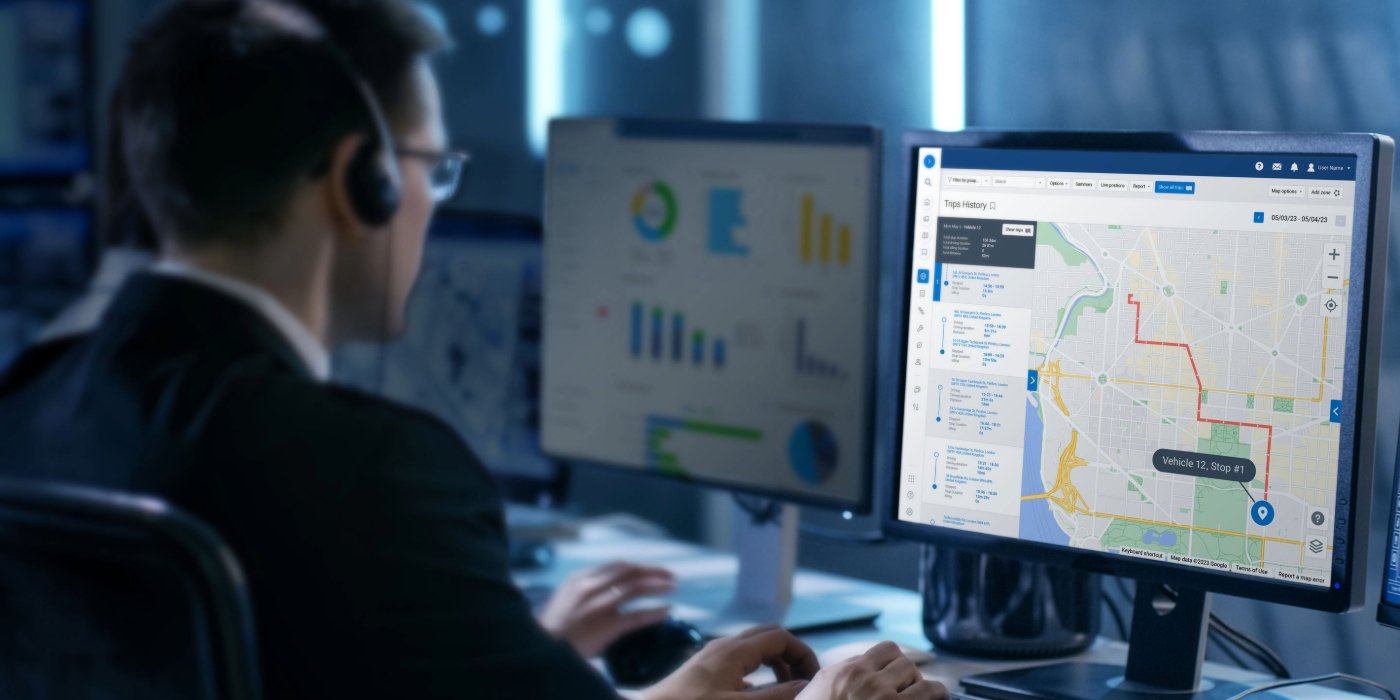
A location icon next to each zone name opens the Trips History page, showing exactly where the vehicle was during that stop and the trip details.
You can run the report by asset or by driver, filter by group, date range and zone type, and view it as a summary for the big picture or as a detailed list. Download it or view it in your browser, and schedule it as an emailed report so it lands in your inbox without anyone having to run it.
Good to know: The report covers stops. It does not list times when a vehicle simply drives through a zone without stopping. If a stop falls where two or more zones overlap, all of those zones appear in the report.

What you can do with zones and customer visits

Prove service was delivered
Arrival time, time on site and departure time for each customer give you a record to back up invoices and settle “you never came” disputes.
Understand job costs
Knowing how long your crews spend at each customer, and how many times they visited, helps you price work accurately and spot jobs that consistently run long.
Plan better routes
Visit data shows you where your drivers are going and how long each stop takes. Geotab suggests using this kind of data to divide your service area into quadrants and assign a driver to each, which reduces overlap and total distance driven.
Get alerts when it matters
Build rules around zones to be notified when a vehicle enters or exits one. Many fleets want advance notice when a vehicle leaves a customer’s address, so they know how far along the work is or when to prepare the next shipment. You can also be alerted when a vehicle stays in a zone too long, for example more than five minutes at a coffee shop you have set up as a zone.
Keep vehicles out of places they shouldn’t be
Zones can also be set up as off-limits areas, with rules that flag when a vehicle goes there.
Dispatch to a zone
Send a zone location to your driver with the Geotab Drive app so they know where they are headed.
How it works
- Create your zones. Draw them on the map or import a list of customers from a spreadsheet.
- Let tracking do the rest. Geotab GO devices record trips and stops automatically, and the system matches stops to your zones.
- Review the Zone Visits report. In MyGeotab, go to Productivity > Zones > Zone Visits.
- Set up rules and alerts for arrivals, departures and long stays.
Want to Learn More?
Have questions about setting up Geotab zones, tracking customer visits, or automating location alerts? Our team is ready to help. Contact us today to discover how custom zones can optimize your routes, hold drivers accountable, and streamline your customer service reporting.
Frequently asked questions
What are zones in Geotab?
Zones are virtual perimeters you draw around real-world places that matter to your fleet, such as your yard, customer locations, supplier sites or even entire states. Once zones are in place, MyGeotab can report on them, use them in rules and show the zone name instead of a street address.
What is the Customer Visits report?
The Customer Visits report is now called the Zone Visits report in MyGeotab. It shows which zones your vehicles and drivers stopped in, how often they visited and how long they stayed, so you can see customer activity without matching street addresses by hand.
What information does the Zone Visits report show?
For every visit you get the zone name, the time of arrival, the visit duration and the time of departure. A location icon next to the zone name opens Trips History so you can see exactly where the vehicle was during that stop and the details of the trip.
How do I create a zone in MyGeotab?
Go to Productivity, then Zones, and select + Zone. Click points on the map to outline the area, close the shape by clicking your starting point, then name the zone and choose its settings. Click Save and the zone is available right away.
Can I import a list of customer locations instead of drawing each zone?
Yes. MyGeotab can import zones in bulk from a CSV spreadsheet using coordinates, addresses or polygons. After you upload the file, you see how many zones are valid and how many are not, and you can export the invalid ones to fix them before importing.
Can I run the report by driver instead of by vehicle?
Yes. You can view zone visits by asset or by driver, and filter by group, date range and zone type. The report is available as a summary for the big picture or as a details view for every individual visit.
Does the Zone Visits report show vehicles that drive through a zone without stopping?
No. The report covers stops inside a zone and does not list times when a vehicle simply passes through. If you want to know when a vehicle enters or leaves a zone, set up a zone rule and a notification instead.
What happens if a vehicle stops where two zones overlap?
All of the relevant zones appear in the report for that stop, so you do not lose visibility when customer sites, yards or service areas share the same ground.
Can I get an alert when a vehicle arrives at or leaves a customer?
Yes. You can build rules around zones and be notified when a vehicle enters or exits one. Many fleets use a departure alert to see how far along the work is or to know when to prepare the next shipment.
Can I be alerted if a vehicle stays in a zone too long?
Yes. For example, you can set a coffee shop as a zone and be notified if a vehicle spends more than five minutes there. The same approach works for customer sites that regularly run over the time you planned for.
Can zones keep vehicles out of certain areas?
Yes. You can create zones that are off limits and build rules around them, so you are notified when a vehicle goes somewhere it should not.
How do zones help with proof of service?
Arrival time, time on site and departure time for each customer give you a record that supports your invoices and helps resolve disputes about whether a visit happened. For more detail, read our guide to proof of service with GPS tracking.
How can customer visit data help with job costing and scheduling?
Knowing how long your crews spend at each customer and how many times they have visited helps you price work more accurately, spot jobs that regularly run long and plan realistic schedules.
Can zones help me plan better routes?
Yes. Geotab suggests using visit data to divide your service area into quadrants and assign a driver to each one. That keeps drivers from crossing paths, lets them reach more customers and reduces the total distance driven per customer and per vehicle.
Can I send a zone to a driver as a destination?
Yes. You can dispatch a vehicle to a location by sending the zone to your driver through the Geotab Drive app.
Can I choose which vehicles and drivers a zone applies to?
Yes. When you create or edit a zone, the Publish to groups setting lets you apply it to specific assets and drivers. The default is your company group, which covers everyone in the database.
Can I make a zone temporary?
Yes. You can set an end date on any zone, which suits short-term job sites, seasonal locations or one-off projects.
What happens to my reports if I edit or delete a zone?
Editing a zone’s shape or type can affect event data for your vehicles, and you will need to reprocess your data to apply the new setup to rules that depend on zones. If you delete a zone, reports that used to show its name will show the street address instead, where available.
Can I download or email the Zone Visits report?
Yes. You can download the report, view it in your browser or prepare a PDF from the Report menu in MyGeotab. Larger reports can take a little time to generate, and you can check their status under My Reports.

Check Pricing
All of our GPS tracking solutions are customized for your business and tailored to your budget...

Return on Investment
At GPS Tracking Canada, we understand that every company benefits from GPS Tracking in different ways...

Request a Demo
Get a live one-on-one demonstration from GPS Tracking Canada. See for yourself how customized...
For more information, or to schedule a demo or an installation,
call us toll free at 1.877.477.0987